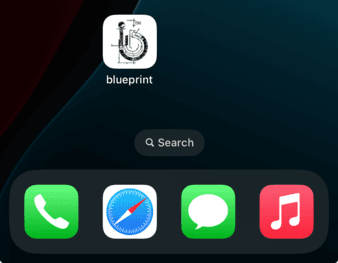

PWA Installation Guide
This installation guide will help you add the blueprint app to your Android/IOS device for easy access and better user experience. Please follow these instructions provided below, based on your device and browser type:
Android Device (Chromium-based Browser)
If you are in an android device using a chromium-based browser like Chrome or Brave, follow these installation guides:
Visit the blueprint homepage and you will see an install prompt at the bottom of the page as follows:
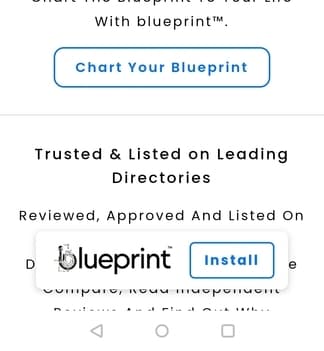
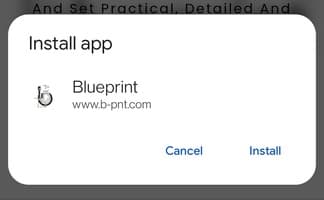
Click on the Install button and a new "Install App" modal will open. Click Install here as well:
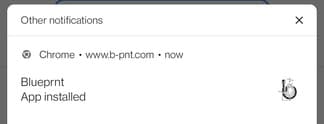
Wait for a while, the app will install. You can view your notification bar to see if the installation has finished:
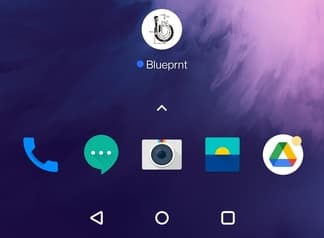
All done. Now, go to your home screen and you will see a new app icon of the blueprint app:
Android Device (Non Chromium-based Browser)
If you are, however, using a non-chromium based browser in your android device like Firefox, please follow these installation guides:
Visit the blueprint homepage. Click on the "Three Vertical Dot" icon at the top-right to open the Options tab:

Scroll down and you will see a “Add app to Home Screen” option:

After clicking on "Add app to Home Screen", an installation modal will appear. Click on “Add automatically”:
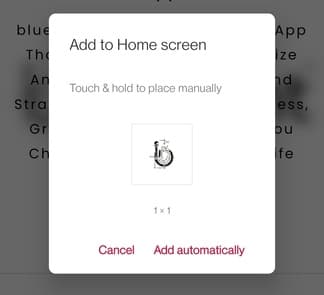
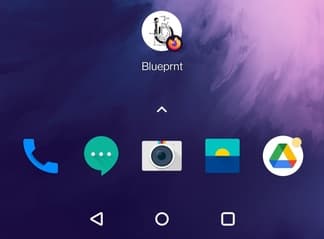
All done. Now, go to your home screen and you will see a new app icon of the blueprint app:
IOS Device (Safari Browser)
For your IOS devices (Iphone preferably), the way to install the PWA app is similar to the firefox approach but a bit different. Please follow these instructions:
Visit the blueprint home page in Safari. An installation guide modal will appear. You can see the guide for installing the app here as well:
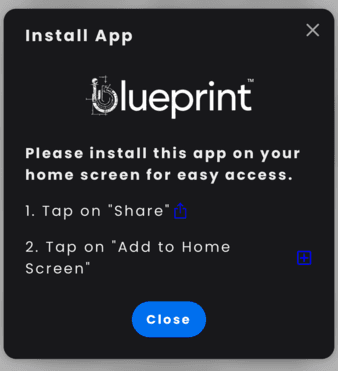
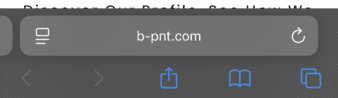
On the bottom of the tab, find and click on the share icon (the first icon) that looks as follows:
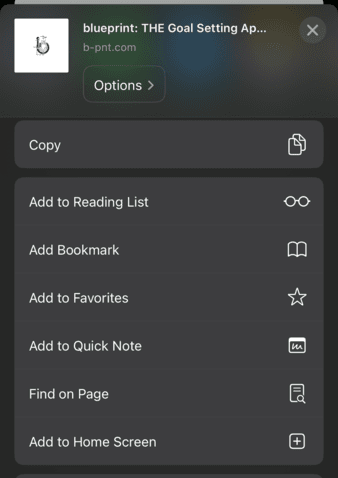
Scroll down until you see “Add to Home Screen” option. Click that:
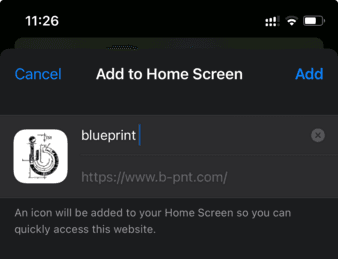
An option to add the bookmark will appear. You can edit the app (bookmark) name if you like:
All done. Now, go to your home screen and you will see a new app icon to use the app: